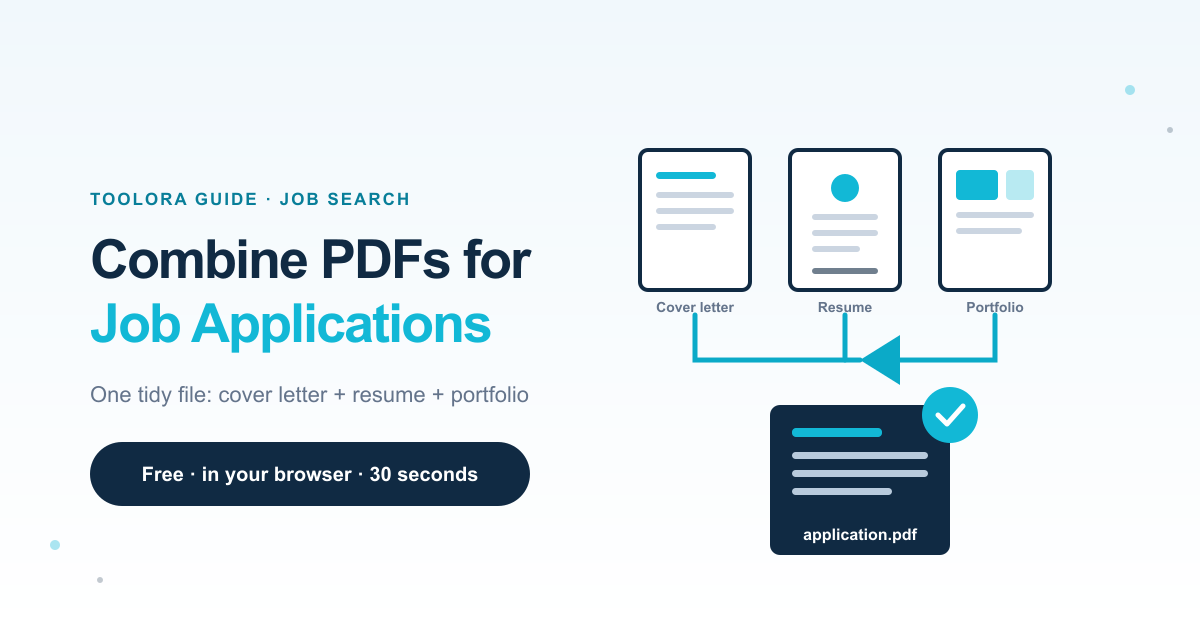
You spent hours polishing your resume and tailoring your cover letter. Then the application form says: upload one file only. Or worse — you attach three documents and something gets lost, skipped, or opened in the wrong order. Combining everything into a single, well-ordered PDF fixes both problems.
Why one PDF beats three attachments
- Nothing gets lost. Email clients and applicant tracking systems (ATS) sometimes drop or scramble multiple attachments. One file always arrives whole.
- You control the story. The recruiter sees your cover letter first, then your resume, then your portfolio — in the exact order you chose.
- It looks professional. A single file named Jane-Doe-Application.pdfsignals organization before the recruiter reads a single word.
- ATS-friendly. Most application portals accept one upload per field. A combined PDF fits neatly into the "Resume" field with everything included.
What to include — and in what order
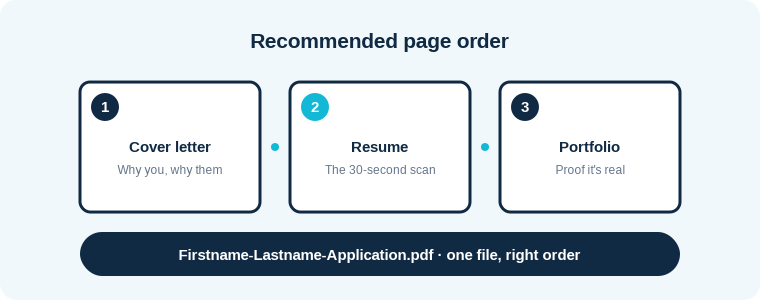
- Cover letter — one page, tailored to the role. It sets the context for everything that follows.
- Resume — the core document, saved with selectable text (not a scan) so the ATS can read it.
- Portfolio or certificates — only what is relevant. Three strong project pages beat twenty average ones.
Applying for an academic or grant position? Add your diplomas and reference letters last, each clearly separated by its own title page or file header.
How to combine your PDFs in under a minute
You do not need an account, a subscription, or an upload to a stranger's server. With the free Toolora PDF Merger, everything happens in your browser:
- Select your files. Choose your cover letter, resume and portfolio PDFs — two files or ten.
- Check the order. Files are merged in the order you select them, so pick them one by one: letter first, resume second.
- Download the merged PDF. Click once, rename it Firstname-Lastname-Application.pdf, and attach it everywhere.
Because the tool runs entirely in your browser with the pdf-lib library, your resume never touches any server — handy when your documents contain personal details.
Merge your application PDF now
Free, private, no sign-up. Your files never leave your browser.
Open the PDF Merger →Naming and sending tips
- Name the file after you, not the document. Resume.pdf gets lost in a folder of forty resumes; Jane-Doe-Resume.pdf does not.
- Keep it under 5 MB. Large scans of certificates are the usual culprit — compress images before merging.
- Test before sending. Open the merged PDF once and scroll through it: check the order and that page numbers still make sense.
- One file per portal field. If a form has separate fields for letter and resume, upload them separately — do not force one file everywhere.
Frequently asked questions
Do ATS systems read combined PDFs?
Yes, as long as the text is selectable. The trouble starts with scanned pages — if your portfolio pages are images, the ATS cannot read them, which is fine as long as your resume pages are text.
Can I combine Word documents instead?
Not directly — export each Word file to PDF first (File → Save As → PDF), then merge the PDFs. Mixing raw .docx files into a PDF merger will not work.
How many files can I merge at once?
As many as you need — the merger processes them in the order you select them. For job applications, three or four documents is the sweet spot.
What if I need to change the order afterwards?
Re-merge in the right order, or extract the pages you need with the PDF Splitter and merge again. Both tools are free.